Files
Your files as a real folder tree the assistant shares with you, and how a folder becomes a source.
Files is your files: a real folder tree the assistant shares with you.
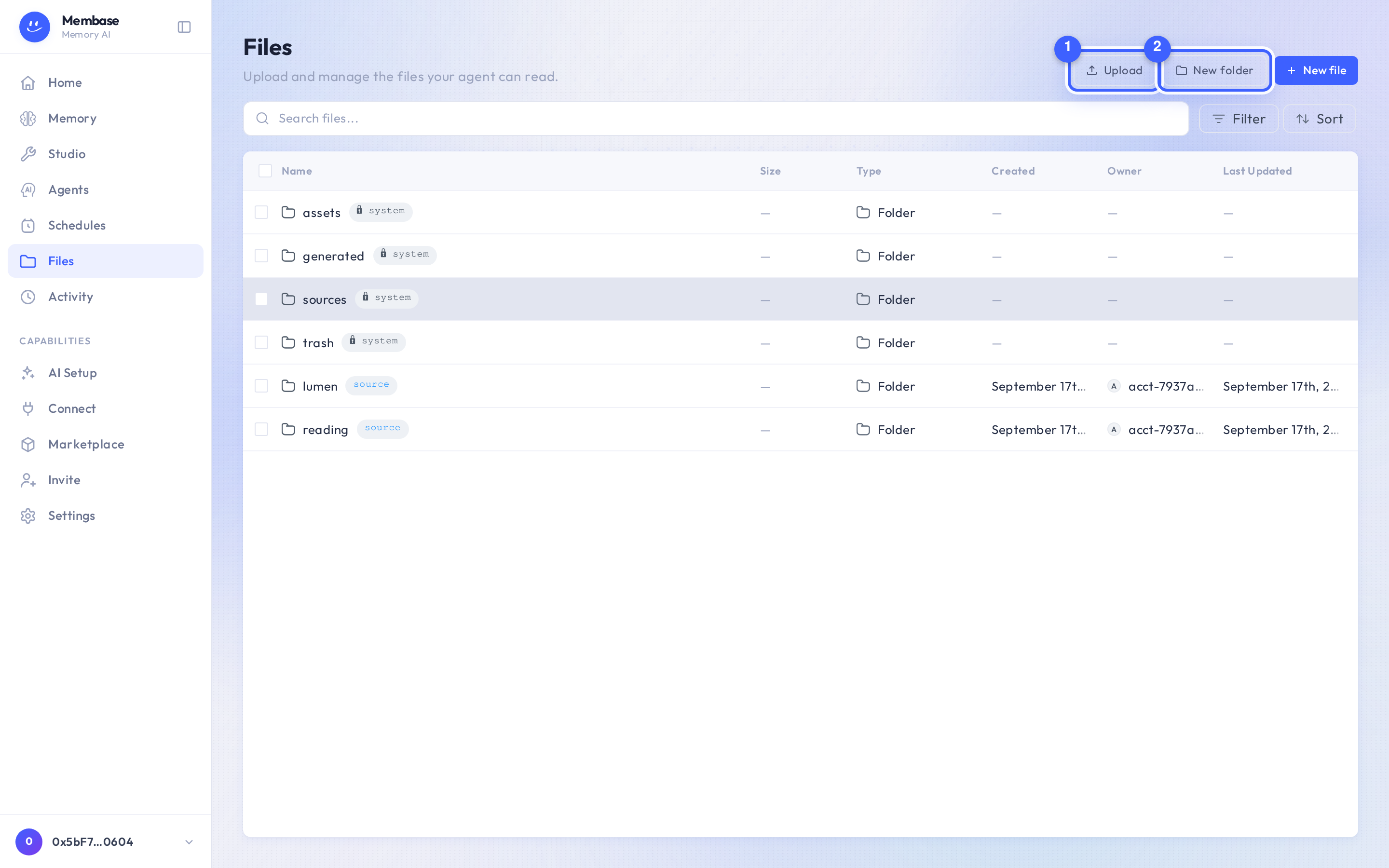
- Upload. Files land in the folder you are in.
- New folder. Any folder can later become a source.
The root is your own tree. The locked system folders generated, assets, sources and trash
sit at the top of it, each badged System; you cannot create or upload anything in them. Files
are read from your memory’s storage, so the first open can take a few seconds while it wakes.
Right-click a row for rename, move, delete and download. Documents (Markdown pages, whether
written here or uploaded) and folders go to trash, where you can restore them. Other files,
such as uploaded PDFs or images, and assets are deleted permanently; the confirmation says
“This is permanent — it does not go to Trash.”
Making a folder a source
Section titled “Making a folder a source”You do not do it here. Open the memory that should read the folder and press Choose on Your Files in its Add card. The same browser opens inside the dialog, with a footer that connects the ticked folders. A folder the memory already reads says reading.