Setup guide
The Setup guide on a new account: create a memory, add a source, connect an AI tool, one lit control at a time.
On a new account the product dims the page and lights the one control to press next. That is the Setup guide. It has three steps, the same three this documentation follows:
- Create a memory
- Add a source
- Connect an AI tool
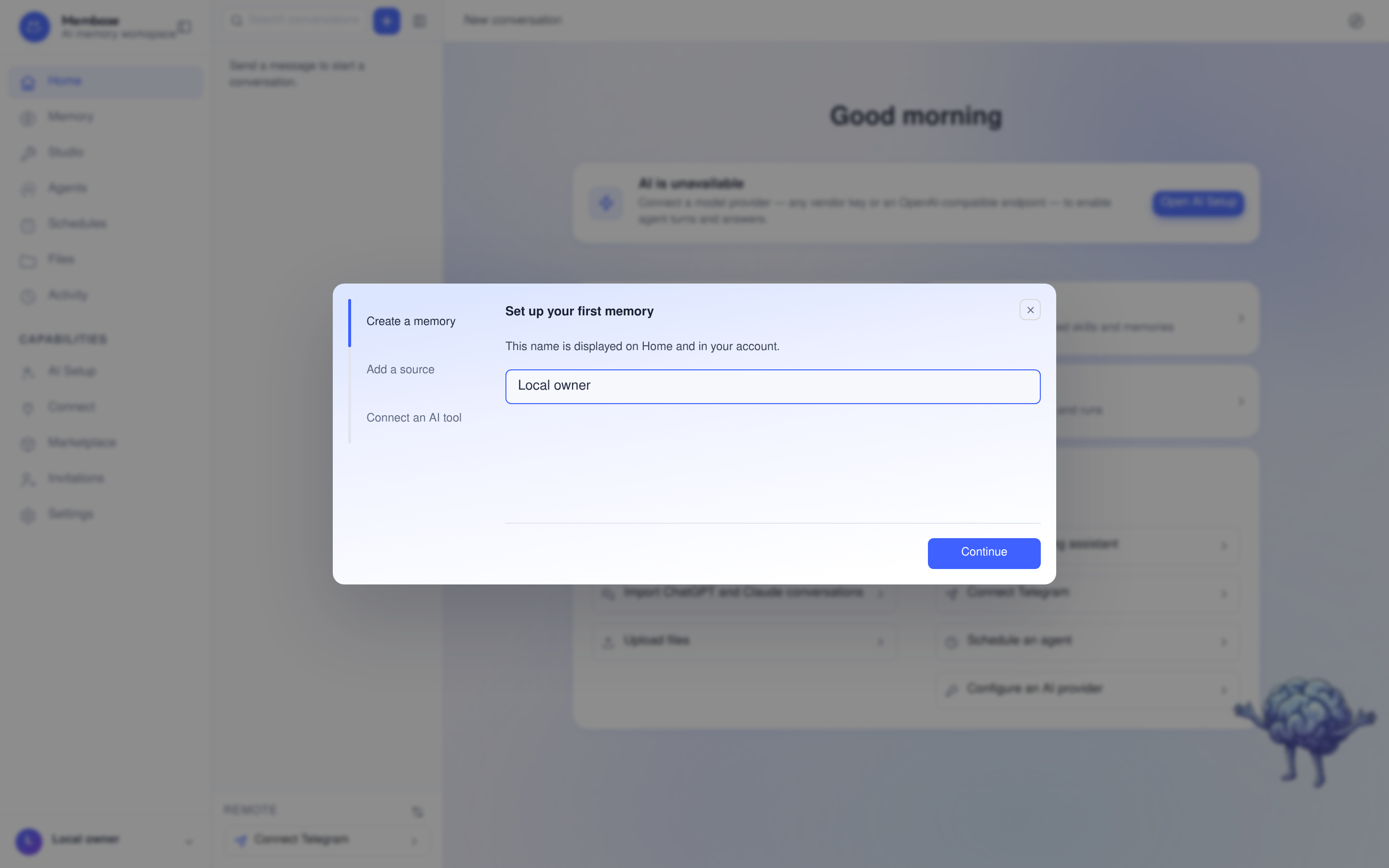
The guide opens on a card titled Set up your first memory, with the three steps in a rail on its left, that asks for your display name. (On a narrow screen it is a smaller card at the foot of the screen, Set your display name.) Press Continue and the first real control lights up, with a small card beside it saying what to do.
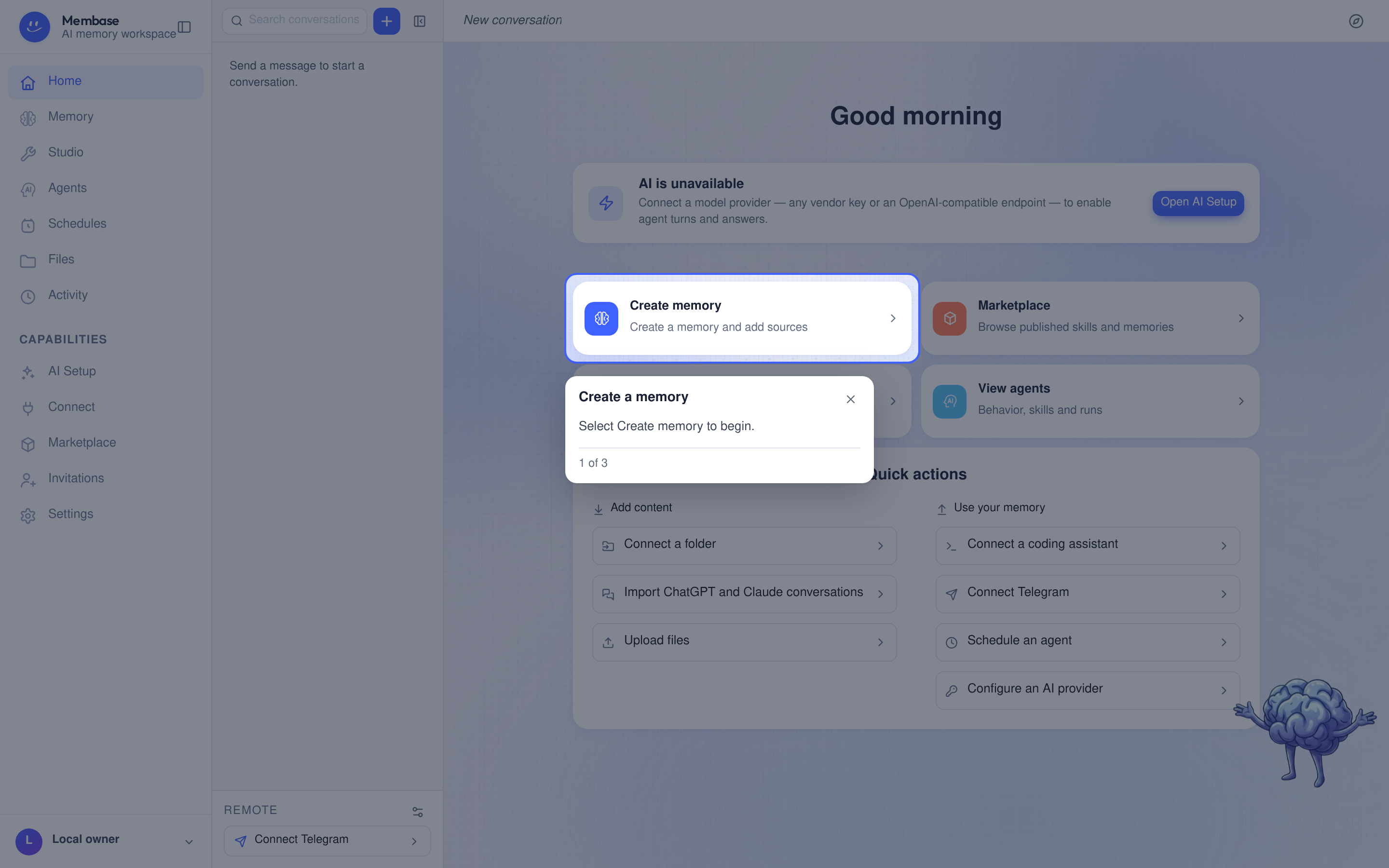
A few things worth knowing:
- Completed steps are marked in the guide. Select Next to continue. The third step completes
when an app is approved on Connect, not by asking on Home; the closing card then says
“
is connected. Send a query to verify access.” - A step you have not done holds until you do it. You can close the guide any time with the X on its card.
- It opens by itself once per browser session on an account with no memories and no connected apps. After that, the Setup guide button (the compass icon at the top right of a Home conversation) starts it again from the name card.
- On a page without the step’s control, the guide shows a centred card with one button to the right page, such as Open Memory or Open Connect. On a narrow screen, or while the control is not on screen yet, a small card stands at the corner instead.